In this article:
Emergencies and natural hazards like typhoons and earthquakes can strike without warning, catching even the most capable off guard.
That's why taking thoughtful steps ahead of time makes all the difference, equipping you with the resilience and steady confidence needed to face any challenge with greater composure.
One of the most effective ways to stay ready is by setting up the earthquake alert system and other built-in safety tools on your android or iOS device. To help you stay ready, we’ve rounded up the key emergency features your device offers and how they work.
What are Mobile Emergency and Safety Features?
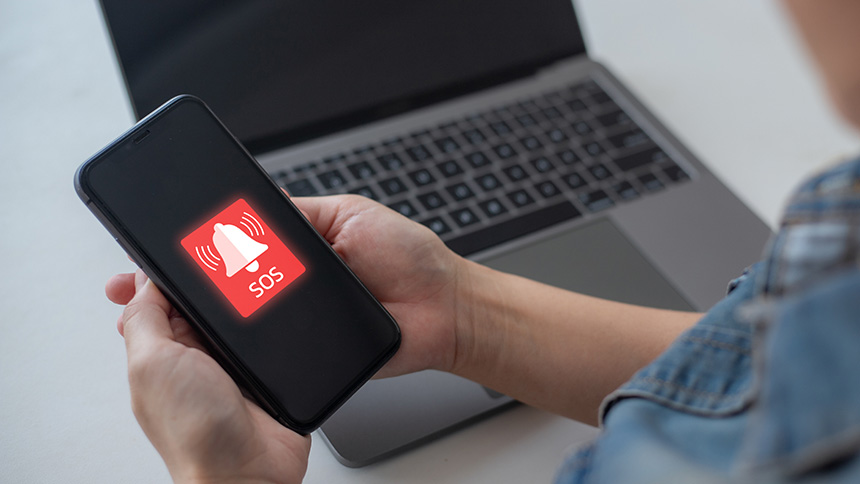
Mobile emergency and safety features are built-in tools on your phone that are designed to help you reach out for help quickly, share your location in an instant, or receive critical alerts.
They’re invaluable in everyday situations, but more importantly, they can become true lifesavers when unexpected hazards arise.
Essential Emergency and Safety Features You Should Use
Your phone comes with built-in, intelligent safety features designed to protect you and your loved ones in critical moments. Here are the ones you should activate now.
Emergency SOS
Quickly call emergency services using a simple physical shortcut, even when you can’t navigate your screen or make a regular call. It’s a helpful feature for when you need to reach out for help instantly without the delay of unlocking your phone.
For iOS:
- Go to Settings.
- Tap “Emergency SOS.”
- Enable options like “Call with Hold” or “Call with 5 Presses.”
If you’re using an iPhone 14 or later with iOS 16.1 or above, you can still use this feature even when you don’t have cellular or WiFi coverage.
- Dial 911, then wait for the call to connect or for the “Emergency Text via Satellite” option to appear.
- Tap “Emergency Text via Satellite” then “Report Emergency.”
- Answer the prompts to provide information about your situation and location.
- Follow the onscreen instructions to connect to a satellite.
- Send and receive follow-up information.
For Android:
- Open Settings.
- Tap “Safety & emergency” then click “Emergency SOS.”
- Follow the setup to enable power button presses (usually five quick presses).
Location Tracking Tools
Share your real-time path with trusted contacts, so they can see your exact coordinates if you become stranded. It’s a great way to ensure that family members can find you during flash floods or when you’re traveling through unfamiliar areas.
For iOS:
- Open “Find My” on your phone, then select “People.”
- Share your location indefinitely or temporarily.
For Android:
- Open the Safety app.
- Select “Emergency sharing.”
- Add contacts to automatically share location and an optional message during SOS.
Emergency Contacts
Designate trusted contacts who can be reached directly from your lock screen without unlocking the device. It can save time by allowing first responders to notify your family immediately, even when you’re unable to speak or unlock your phone.
For iOS:
- Open the Health app and locate your profile picture.
- Tap “Medical ID.”
- Select “Emergency Contacts” and click “Edit.”
- Tap the “Add (+)” button to add an emergency contact or the “Delete (-)” button next to the contact you want to delete.
For Android:
- Open the Safety app.
- Tap “Emergency sharing.”
- Add contacts to automatically share location and an optional message during SOS.
Medical ID/Medical Information

Store vital details like allergies, conditions, medications, and blood type that are accessible from the lock screen or via satellite for first responders. It’s an intuitive feature that helps first responders provide the right medical care even when you’re unresponsive.
For iOS:
- Open the Health app.
- Select “Medical ID” then “Get Started.”
- Click “Edit” and fill in your details.
- Scroll to “Emergency Contacts” and add emergency contacts.
- Turn on “Show When Locked” to allow first responders to access your Medical ID readily.
For Android:
- Open the Safety app.
- Sign in to your Google Account.
- Tap “Your info” then select “Medical information.” Fill in your details.
- Turn on “Show When Locked” to allow first responders to access your Medical information readily.
Crash Detection and Fall Detection
These automatically detect severe impacts or falls and can call emergency services if you’re unresponsive. They allow your phone to automatically notify authorities and send your location if you’re unable to move.
For iOS (If you’re using an iPhone 14 or later with iOS 16.1 or above, you can still use this feature even when you don’t have cellular or WiFi coverage.):
- It’s enabled by default in Settings.
- The device’s motion features will work together to detect severe crashes.
- In case of a detected severe crash, the device will prompt you to contact emergency services or to cancel contact.
- After 10 seconds of no response, the device will automatically call the emergency services.
For Google Pixel:
- Open the Safety app.
- Sign in to your Google Account.
- Tap “Features.” Select “Safety & emergency.”
- Turn on “Car crash detection.”
Emergency Alert and Warning Message (EAWM)
With this feature enabled, your phone delivers critical government alerts straight from authorities like the Philippine Atmospheric, Geophysical and Astronomical Services Administration (PAGASA) or the National Disaster Risk Reduction and Management Council in the Philippines (NDRRMC).
These phone alerts cover severe weather, earthquakes, and other public safety hazards, and can give you the crucial head start to act decisively, such as evacuating safely before conditions worsen.
For iOS:
- Go to Settings.
- Locate “Notifications.”
- Scroll to “Government Alerts” and enable.
For Android:
- Go to Settings.
- Tap “Safety & emergency.”
- Enable “Crisis alerts.”
Safety Check-In
Notify loved ones if you feel unsafe during your travel or encounter issues upon arrival. It’s the perfect feature for solo commutes or late-night travel.
For iOS (Start timer-based):
- Go to the Messages app.
- Tap the “New Message” button to add a recipient, or select an existing conversation.
- Tap the “Add (+)” button.
- Click “Check In” then “Edit.”
- Select “After a timer.”
- Select the amount of time you want to put on the timer.
- Tap the “Send” button.
For iOS (Start travel-based):
- Go to the Messages app.
- Tap the “New Message” button to add a recipient, or select an existing conversation.
- Tap the “Add (+)” button, select “Check In,” then proceed to “Edit.”
- Select “When I arrive.”
- Tap “Change” and then enter your intended location in the search field.
- To set your location arrival radius, tap “Small,” “Medium,” or “Large” at the bottom of the screen.
- Your friend receives an “Arrival” notification once you’ve entered that radius.
- Tap “Done.”
For Android (Pixel):
- Open the Safety app.
- Click “Safety Check.”
- Set up your reason and duration.
- Tap “Next” and select contacts. Click “Start.”
- Choose “Add time” to extend the duration of the “Safety Check.”





Stay Prepared and Safe Wherever Life Takes You
Beyond calls and messages, your phone is a reliable safety partner, ready to connect you to vital support during natural disasters or everyday emergencies.
To make the most of these life-saving features, staying connected is key. Check out the latest devices through GPlan with Device for smartphones bundled with monthly data access, or subscribe to a prepaid promo for flexible, on-demand data connection.
Ultimately, preparing in advance allows you to move through your day with the confidence and calm that comes from being fully ready. It can be life-saving, and you’ll always be grateful for taking those extra steps to stay ahead.


