In this article:
Mobile network problems can be a major headache. These glitches can cause anything from dropped calls to agonizingly slow loading times, disrupting your daily life. This guide reveals the most common issues and how to fix them, so you can get your connection back and keep it strong.
Ready to tackle connectivity issues? Here's a breakdown of 12 network problems and their solutions.
1. No Network Connection

Your phone shows “No Service,” and you can't make calls or use data. This means you have no signal or out of the coverage area.
Fix: Try restarting your phone. This often clears up temporary glitches that can interfere with your connection. Also, make sure you don't have airplane mode on, which blocks all cellular signals. If that doesn't work, try removing and reinserting your SIM card (but turn off your phone first!). This can help re-establish a connection with your carrier's network.
Finally, check your telco provider’s website for any reported outages. If there’s no service on your phone or you still can’t connect to the mobile network, contact your provider for help and they’ll be happy to assist.
2. Weak Signal
You only have a few bars on, and your signal is weak. You can make calls or use data, but the connection is unreliable and slow.
Fix: Move closer to a window, go outside, or get to higher ground for better reception. Thick walls and other obstructions can weaken your signal. If you consistently encounter this at home or work, consider getting a signal booster to amplify it.
3. SIM Card Issues
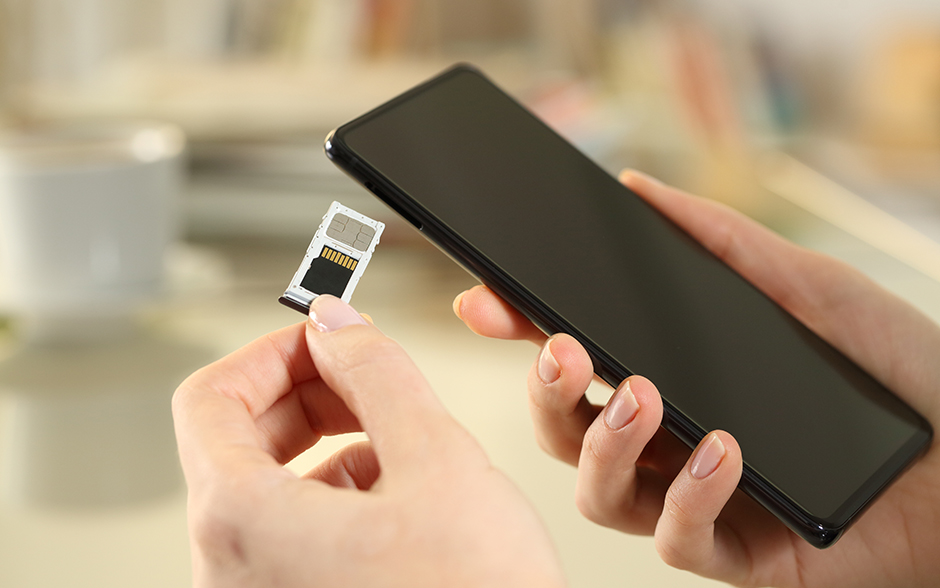
Your phone says ”No SIM” or displays an error message. This means it can't detect your SIM card, which is essential for connecting to your mobile network.
Fix: First, turn off your phone. Then, remove and reinsert the SIM card, ensuring it's seated correctly in its tray. If that doesn't work, gently clean the card's metallic contacts with a soft cloth. Dust or dirt can sometimes interfere with the connection. If you still have problems, test your SIM on another phone to determine if the issue lies with the SIM itself or your phone's card reader.
4. Network Outage
Even with a strong signal, you can't make calls or use data. This could mean your carrier's network is experiencing an outage. Unfortunately, these outages are outside your control.
Fix: Call your carrier's hotline or check their social media for information on outages, updates on the situation, and estimated recovery times. If there’s an outage, all you can do is wait for them to resolve the issue. Knowing this early on can save you time troubleshooting your device.
5. Data Not Working

You can't browse the internet or use apps that require a data connection despite being connected to your network provider.
Fix: First, check if you haven’t accidentally turned off your mobile data in your phone's settings. If that's not the issue, a simple restart can often resolve temporary glitches affecting your data connection.
Also, check your data plan to make sure you haven't reached your limit. If you've used up all your allotted data, your carrier might have slowed down your connection or cut it off completely.
Finally, incorrect APN settings (the gateway your phone uses to connect to your carrier's mobile data network) can also prevent you from accessing the internet. Contact your telco company to get the correct APN settings for your device.
6. Slow Internet Speed
Web pages take forever to load, and videos keep buffering even though you have a connection.
Fix: Network congestion during peak hours can significantly impact your internet speed. Try using data-heavy apps during off-peak hours. Close any unused apps running in the background that might be consuming bandwidth. Connecting to a home WiFi is a great way to bypass slow cellular data speeds when available. Consider upgrading your data plan if slow speeds persist, even during off-peak hours and with WiFi.
7. Intermittent Data Connection

Your internet connection cuts in and out. You might have moments of normal browsing followed by sudden disconnections.
Fix: Inconsistent data connections are often a result of fluctuating signal strength. Try moving closer to a window or going outside to see if it stabilizes. Network congestion can also cause your online access to be spotty, so avoid using data-heavy apps.
If the problem continues, restart your device to resolve temporary software glitches that might interfere with your connection. If you've tried these steps and still have intermittent access to the network, it could indicate a hardware issue with your phone. If that’s the case, contact a phone repair shop for further assistance.
8. App-Specific Data Issues
Some apps on your phone can't connect to the internet, while others work perfectly fine. This usually means the problem is with the app itself, not your overall network connection.
Fix: Start by checking the app's permissions in your phone's settings and make sure it has permission to use data. Next, see if an app update is available. Older versions can have bugs that interfere with internet connectivity.
Clearing the app's cache and data can also resolve temporary glitches that might be causing connection problems. If these steps don't work, try uninstalling and reinstalling the app to fix underlying software issues.
Lastly, check if the app's servers are down by looking at its social media pages or online forums. Sometimes, the problem lies with the application’s service, not with your phone or network.
9. Background App Usage
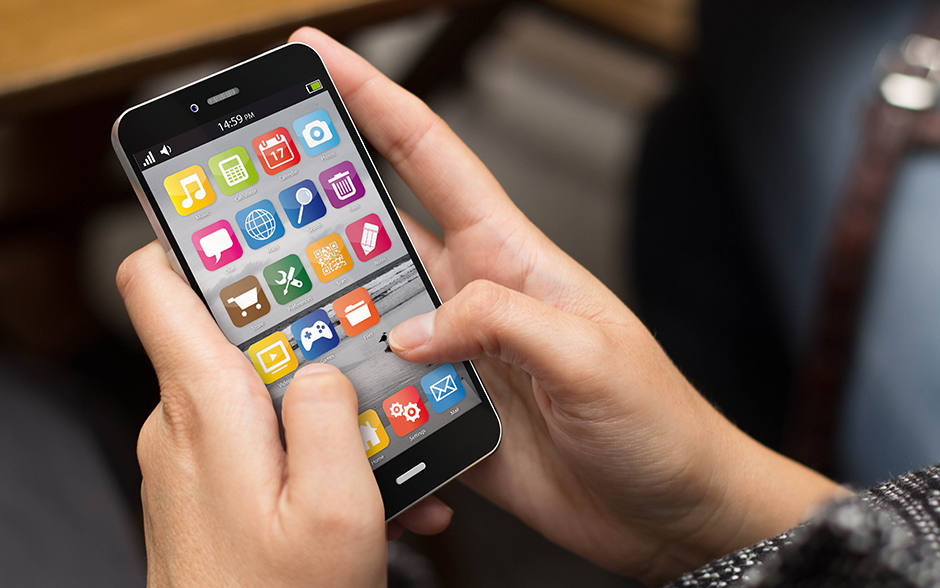
Your mobile data disappears quickly, even when you're not actively using your phone. This often happens because some apps use data in the background to update content, send notifications, and perform other tasks. This constant background activity can slow down your internet speed and consume your data allowance.
Fix: To prevent this, restrict background data usage for apps that don't need to be constantly connected. You can find these in your phone's settings menu, usually under "Data Usage" or "Mobile Data."
By limiting background data, you can improve your internet speed. You can also monitor your usage in the settings menu to identify which apps consume the most data and adjust their settings accordingly.
10. Dropped Calls
You're in the middle of a phone call, and it suddenly disconnects for no apparent reason. This can be incredibly frustrating, especially for important conversations.
Fix: Dropped calls often occur due to weak signal strength. If you're in an area with poor reception, try moving to a location with a stronger signal (refer to the "Weak Signal" tip). Outdated phone software can also cause dropped calls, so ensure your phone's operating system and carrier services are up to date.
If you continue to experience dropped calls even with a strong signal and updated software, contact your telco company. There might be network issues in your area to address. And if you’re a Globe postpaid or prepaid user with a VoWiFi-capable device, don’t forget to turn on VoWiFi in your settings. It lets you make calls or send SMSes over WiFi in areas with weak cellular signals.
11. Phone Software Issues
You try various fixes, but you still have network problems. This could be due to bugs or outdated software on your phone. Software glitches can affect all aspects of network connectivity, from signal strength to data speeds.
Fix: Make sure your phone's software is up to date. This includes the operating system (like Android or iOS) and the carrier services app, which manages your connection to your mobile network. Updates often include bug fixes and performance improvements that can resolve connectivity issues. If problems persist even after updating, a factory reset might be necessary. This erases all phone data, so back up important files first.
12. Roaming Issues

You travel internationally, but your phone doesn't work. You can't connect to a local network to make calls or use data.
Fix: First, check your phone's settings to make sure you've enabled roaming. This allows your phone to connect to networks in other countries. Next, confirm with your carrier that you have an international roaming plan. Without one, you might not be able to use your cellular plan abroad, or you might incur high charges.
If you still can't connect, you might need to manually select a network in settings. Your phone might not automatically connect to a suitable network in the new country.





Staying Connected with Globe
Mobile network problems happen. But you can fix them fast with these troubleshooting tips. Want stable and more reliable connectivity? Upgrade to Globe 5G for blazing-fast speeds.
When your mobile data is down, switch to strong home internet plans. Try GFiber Postpaid for fiber-fast internet with a fixed monthly plan or GFiber Prepaid for flexible internet with no monthly bills. Explore Globe's latest offers, so you stay connected and do more of what you love online.


