In this article:
You just got your Globe AT HOME Prepaid WiFi modem and want to get online, stat. Whether it’s for work or bingewatching, learning how to set up Globe AT HOME Prepaid WiFi is easy.
Before you start, have your modem, power adapter, smartphone, and the GlobeOne app on hand. With everything ready, you can set up and connect in no time!
Step-by-Step Setup: Get Connected
To get started, find the sticker on the back of your Globe AT HOME Prepaid WiFi modem. This sticker contains important information you'll need during the setup process, including Home Prepaid WiFi Number, SSID (Network Name), Password, Modem's IP Address, Default Username, and WLAN Key.
Want to know how to activate your Globe AT HOME Prepaid WiFi? Follow these easy steps:
- Power Up: Plug your modem into a power outlet using the included adapter.
- Activate Your Device:
- Download the GlobeOne app from the Google Play Store or the App Store.
- Open the app.
- If you're new to GlobeOne:
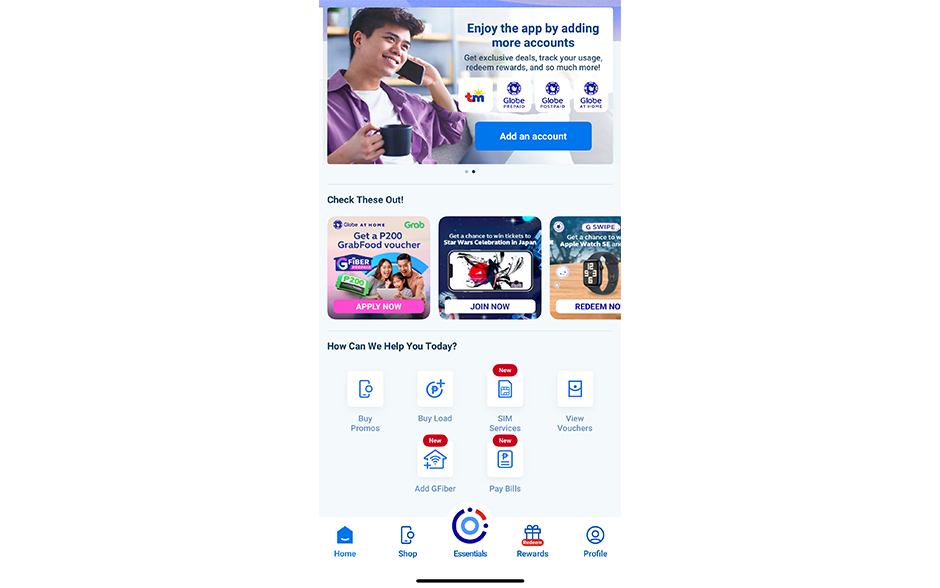
- Select "Add an Account."
- Enter your Home Prepaid WiFi number and tap "Register your SIM now."
- Follow the prompts to register your SIM, which may include filling out a form, taking a selfie, and uploading a valid ID.
- If you have an existing GlobeOne account:
- Swipe right on the carousel and tap "Add account."
- Enter your Home Prepaid WiFi number.
- Select the model of your modem.
- Enter your modem's username and password (found on the modem sticker).
- Choose a nickname for your Home Prepaid WiFi and enter your mobile number.
- Wait to receive the OTP via text.
- Once you've added your account, you might see instructions on how to claim free data or available promos. All first-time Globe AT HOME Prepaid WiFi users get a one-time bonus of 20 GB of data, valid for 90 days.
- Connect to Your Network:
- Find the SSID (network name) and password.
- Select the network name on your device and enter the password to connect.
Essential Management: Take Control of Your Connection

Now that you know how to connect your Globe AT HOME Prepaid WiFi, you can start managing it effectively. Customize your settings, load data, and troubleshoot issues for a seamless online experience.
- Access the Modem Dashboard
To customize your settings, access the modem's dashboard by opening a web browser and typing the modem's IP address (check the sticker on your device) into the address bar. Log in using the default username and password.
- Customize Your WiFi
Wondering how to change your Globe AT HOME WiFi password? Once logged into your modem’s dashboard, you can personalize your network name and secure it with a strong, unique password. Make sure to record your new login details in a safe place.
- Load Your Prepaid WiFi
Keep your connection active by loading data through the GlobeOne app.- Select "Buy Load" on the app's main screen.
- Browse through the available promos and choose the one that best fits your needs and budget. Alternatively, you can select a specific load amount to add to your account balance.
- Follow payment instructions. You can pay using your Globe mobile balance, GCash, credit and debit card, or other linked payment methods.
- Review your chosen promo or load amount and confirm your purchase. You'll usually receive a confirmation message once the transaction is successful.
- Troubleshoot Common Issues
Experiencing a WiFi issue? Here are some common problems and how to solve them.- Slow Speeds: If your internet seems sluggish, try restarting your modem. If you need assistance, contact customer support via the GlobeOne app or reach out through hotline alternatives.
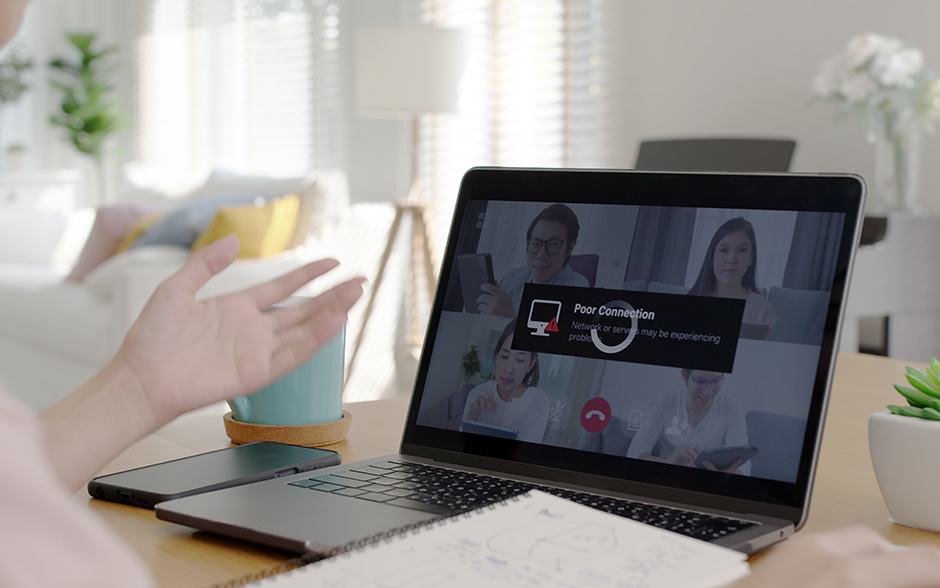
- Connection Drops: If your connection keeps dropping, check for loose connections, restart your modem, or ensure your device is within range of the modem. Also, check for obstructions that might interfere with the signal. If the issue continues, try restarting your modem.
- Problems with Specific Devices: If you're having trouble connecting a particular device, make sure its WiFi is turned on and that it's connecting to the correct SSID name. You might need to forget the network and reconnect. If the problem persists, check the device's settings or consult its user manual.
- Optimize Your Performance
Place your modem in a central location for optimal signal coverage. Regularly update your modem's firmware and check the GlobeOne app for any updates.
Must-Know Online Safety Tips
To ensure a smooth and secure online experience, keep these tips in mind.
- Protect your connection by regularly updating your modem's firmware.
- Use a strong, unique password and change it periodically.
- Enable network encryption (WPA2/WPA3) in your modem settings for added security.
- Be cautious when visiting websites or downloading files from unknown sources.
- Watch out for phishing scams and avoid clicking on suspicious links or attachments.
With Globe AT HOME Prepaid WiFi, you have the freedom and flexibility to enjoy reliable internet at home. By following the setup and management tips in this guide, you can maximize your connection and stay connected to what matters most. Knowing how to set up Globe AT HOME Prepaid WiFi is just the beginning; mastering its management ensures a seamless and secure online experience.