GlobeOne App Navigation and Features FAQs
Frequently Asked Questions on GlobeOne App Navigation and Features
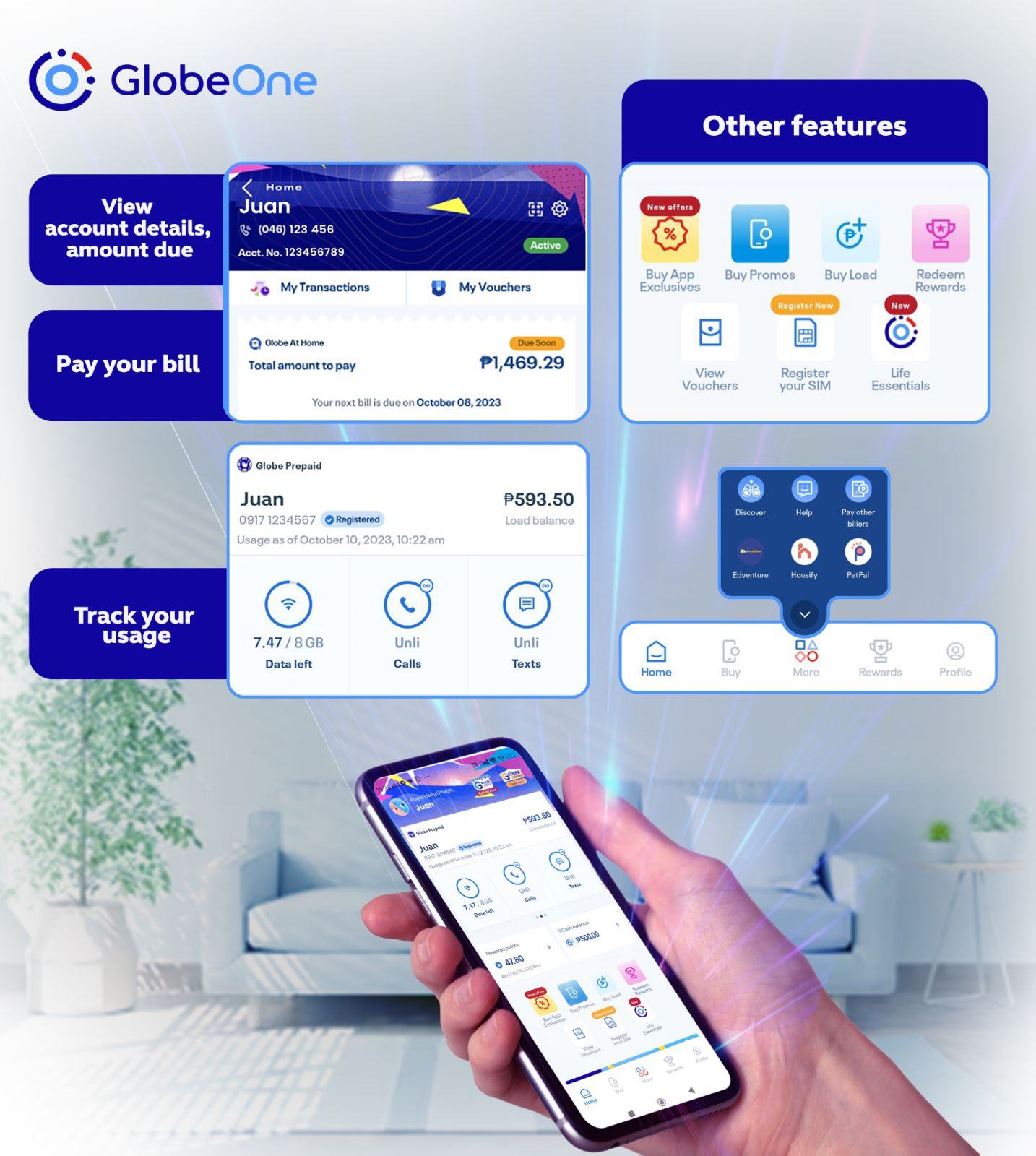
Easily manage your GlobeOne app account with these features:
MAIN TRANSACTION
| Features | Prepaid Mobile | TM | Home Prepaid WiFi | Postpaid Mobile | Globe AT HOME Postpaid | Globe Business Prepaid | Globe Business Postpaid | Globe Business (EG) Postpaid | GFiber Prepaid |
|---|---|---|---|---|---|---|---|---|---|
| SIM Card registration | Available | Not applicable | Available | Not applicable | Not applicable (Linked mobile number should be registered) | ||||
| Buy Load | Available (Personal and Retailer) | Not applicable | Available | Not applicable | Available | ||||
| Buy Promos and Add-ons | Available (Promos) | Available (Add-ons) | Available (Volume/Data Boost) | Available (Promos) | Not applicable | Available | |||
| Loan a Load or Promos | Available | Not applicable | Not applicable | ||||||
| Redeem Freebie Content / Vouchers | Available | Not applicable | Available | ||||||
| Redeem and Gift Rewards (Available for non-telco offers only) | Available | Not applicable | Available | ||||||
| Pay Globe Bills | Not applicable | Available | Not applicable | Available | Not applicable | ||||
| Pay Globe Other Billers | Available | Available | |||||||
Note:
- To proceed with buying add-ons for your Postpaid Mobile, please ensure the following:
- Your account is not temporarily disconnected.
- You have enough credit limit and spending capacity to avail of the add-on.
- There are no pending orders or tickets on your account.
- For Globe AT HOME Postpaid users purchasing a Volume/Data Boost, check if:
- You haven’t exceeded the maximum stack limit of 40 volume boosts.
- You have enough credit limit to proceed.
- There are no pending orders.
- Depending on the type of promo, add-ons, or volume/data boost, you can pay via:
- Charge to Load
- Credit Card/Debit Card
- GCash
- Pay via Bank Transfer
- E-Wallet (Shopee and Grab Pay)
VIEW INFORMATION
| Features | Prepaid Mobile | TM | Home Prepaid WiFi | Postpaid Mobile | Globe AT HOME Postpaid | Globe Business Prepaid | Globe Business Postpaid | Globe Business (EG) Postpaid |
|---|---|---|---|---|---|---|---|---|
| View Postpaid Plan Details | Not applicable | Available | Not applicable | Available | ||||
| View Points and Redeem Rewards | Available | |||||||
| View Postpaid Bills Statement | Not applicable | Available for current and previous months up to 24 months | Available for current and previous months up to 24 months | Not applicable | Mobile: Available for current and previous months up to 24 months BB: Available for current month only | Mobile: Available for current and previous months up to 24 months BB: Available for current month only | ||
| View Postpaid Bills Payment (Official Receipt) | Not applicable | Available for current and previous months up to 24 months | Available for current and previous months up to 24 months | Not applicable | Mobile only: Available for current and previous months up to 24 months | Mobile only: Available for current and previous months up to 24 months | ||
Note:
- View Data, Content, Call, Text Usage Status: The app will display the date and time of your data usage. For the most accurate view of your data allocation, simply pull down to refresh your dashboard or check back 30 minutes after your last usage.
- View Postpaid Account Status: This will include details such as:
- Overdue bill (so you can know if you're past due)
- Bill due date
- Account status (active, inactive, or disconnected)
- View Plan Details: This section includes important information about your plan, such as:
- Plan details
- Monthly Service Fee (MSF)
- Cutoff Date
- Contract End Date
- Spending Limit
OTHERS / AFTER-SALES TRANSACTIONS
| Features | Prepaid Mobile | TM | Home Prepaid WiFi | Postpaid Mobile | Globe AT HOME Postpaid | Globe Business Prepaid | Globe Business Postpaid | Globe Business (EG) Postpaid |
|---|---|---|---|---|---|---|---|---|
| Change Plan (Upgrade or Downgrade) | Not applicable | Available in HELP section | Not applicable | Available in HELP section | ||||
| Mobile Number Porting (Same network, e.g., Globe Prepaid to Globe Postpaid and vice versa) | Available (Same network e.g. Globe Prepaid to Globe Postpaid and vice-versa) | |||||||
| Update Postpaid Account Contact Information (Contact Number, Email, Address) | Not applicable | Available in HELP section | Not applicable | Available in HELP section | ||||
| Request to Renew Postpaid Plan | Not applicable | Available in HELP section | Not applicable | Available in HELP section | ||||
| Apply for a New Postpaid Plan | Not applicable | Available in HELP section | Not applicable | Available in HELP section | ||||
| Postpaid Transfer of Location or Ownership | Not applicable | Available in HELP section | Not applicable | Available in HELP section | ||||
| Request for Postpaid Plan Reconnection | Not applicable | Available in HELP section | Not applicable | |||||
| Request for Repair or Track Repair Status for Postpaid Accounts | Not applicable | Available in HELP section | Not applicable | |||||
| Report Spam or Scam, Lost Phone, or Other SIM Concerns | Available in HELP section | |||||||
Note:
- Auto-Reconnection: If you make a full payment, auto-reconnection will be processed. If the reconnection isn’t completed within 24 hours, you can follow up via the HELP section in the app.
- Plan/Customer Details Update: Currently, the GlobeOne app doesn't support changing your plan or customer details directly. To update your information, tap HELP and select Make account changes to have your details updated in our system.
Be sure to use the GlobeOne app regularly to stay informed about additional functionalities being developed and will soon be available. If you need assistance with account requests or other concerns, simply tap the HELP button.
Your promo freebies will automatically be added to your data usage.
For Globe AT HOME voucher freebies, just tap the "Tap for a surprise" icon on the upper right corner of the app dashboard to view your freebie.
Yes! You can now update your Globe At Home account’s email and contact mobile number in the app by following these steps:
Note: You can update each contact information (Email or Contact number) once every 30 days.
Updating your email and contact information won’t affect your billing details. Please ensure that the mobile number and email you provide are current, as these will be used for:
- Installation and repair requests
- Any Globe-related aftersales concerns
- Marketing or advisory communications
- GlobeOne app access (e.g., OTP)
- Content activations requiring an email link (e.g., Disney+ and Netflix)
It may take a few hours for the update to reflect in the app. If it’s not updated after 4 hours, try these basic troubleshooting steps:
- Ensure a strong network connection
- Check that your app is up to date
For Android users:
- Delete the app.
- Clear the cache by going to Settings > App Management > GlobeOne > Data Usage > Clear Cache.
- Download the app again.
- Wait a few minutes before logging in.
To view or edit your plan details, go to the main page of your account details and tap "View Details". This will display your plan details, personal information, and address.
If you’d like to update any details, feel free to message us at m.me/globeph or tap the HELP icon, and we’ll assist you with your request.
The app can’t be used on multiple devices simultaneously to prevent fraudulent activity.
To continue, either log out from the other device or ensure it has been inactive for more than 10 minutes.
If you're a Globe AT HOME Broadband customer with GFiber Unlimited Plans or GFlex Plan899, you can easily report any internet connection issues via the GlobeOne app.
Just follow the steps to access basic troubleshooting guides, run diagnostics, and raise a repair ticket directly through the app.
Go Manage Your Account
Easily manage and access all your connectivity needs whenever, wherever in one app!
What to Read Next
description here
Reach Out to Us
Submit a bill inquiry, reconnect your line, report connection issues, make account changes, track requests, and more.