In this article:
Ready to experience smoother videos, seamless downloads, and uninterrupted browsing? Upgrading your Globe SIM to 5G gives you faster, more reliable connectivity. It’s the next step beyond LTE for a smoother mobile experience.
Globe 5G brings stronger connections and better coverage wherever you go. You can conveniently upgrade Globe SIM to 5G with the same number online, without visiting a store. This guide will walk you through how to upgrade your Globe SIM to 5G, check its compatibility, and unlock the full benefits of 5G on the latest devices.
Steps to Upgrade Your Globe SIM to 5G

5G is built for speed, stability, and capacity. It allows more devices to connect simultaneously without slowing down. You can enjoy smoother video calls, lag-free gaming, and download movies in seconds. If you’re planning to upgrade, here’s how you can get started.
Step 1: Check your device’s compatibility.

Most new smartphones today support 5G. But if you’re unsure, here’s how to check through your phone’s settings.
iPhone:
- Go to “Settings” > “Cellular” > “Cellular Data Options.”
- Tap “Voice & Data.” If “5G Auto” or “5G On” appears in your settings, your iPhone supports 5G.
Android Phone:
- Go to “Settings” > “Connections” or “Network & Internet.”
- Tap “Mobile Networks” or “SIM & Network.”.
- Tap “Network Mode” or “Preferred Network Type.” If you see 5G listed as an option, your phone is 5G-compatible.
You can also search for your phone model’s specs online or visit the manufacturer’s website for confirmation.
Step 2: Get your 5G SIM on the GlobeOne app.
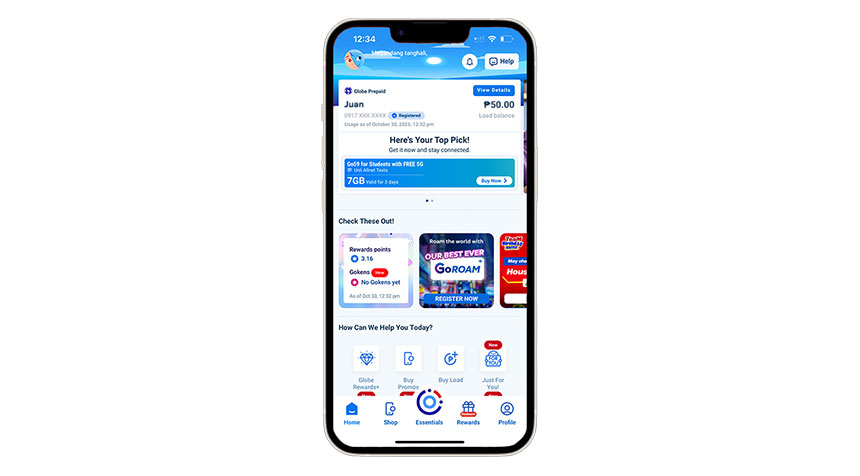
Once you’ve confirmed your phone supports 5G, the next step is to get your new 5G SIM.
For Prepaid Subscribers
Before getting a new 5G SIM, text <SIM CHECK> to 8080 to confirm if your Globe SIM is 5G-ready. If it’s not, you can easily upgrade to a physical 5G SIM in the GlobeOne app by following these steps.
- Open the GlobeOne app.
- Tap the “SIM Services” icon on the home page.
- Choose “Change SIM” then select “Physical SIM to 5G Physical SIM.”
- Confirm your details, pay the ₱10 upgrade fee plus the delivery fee (depending on your location), and you’re done!
- Your new 5G SIM will be delivered straight to your doorstep.
You can buy a 5G SIM at any Globe Store. For eSIM users, note that switching to a physical 5G SIM is only available in-store.
For Postpaid Subscribers
Postpaid subscribers are automatically upgraded to a 5G SIM when renewing in Globe Stores. For those not due for renewal, you can easily switch to a 5G eSIM through the GlobeOne app. Here’s how to do it.
- Open the GlobeOne app.
- Go to “SIM Services” then “Change SIM.”
- Select “Physical SIM to eSIM.”
- Verify eligibility and enter the OTP sent to your phone.
- Provide your email to receive activation instructions.
- Tap “Switch to eSIM” and follow the steps to activate it.
Note: You’ll need an eSIM-capable device to complete the upgrade.
Step 3: Activate your SIM.
Once you have your new physical SIM, follow the steps below to activate it.
- Back up your contacts to avoid losing any important information.
- Turn off your phone and swap your old SIM with the new one. Insert the new SIM in the same slot and device.
- Once inserted, turn your phone back on and switch on mobile data. It should automatically connect to Globe’s 5G network. You may even receive a confirmation message.
If you’ve bought an eSIM, here’s how you can activate it.
For Postpaid eSIM
- Open “Messenger” and search “Globe Telecom” (verified).
- Tap Get Started > Activate SIM > Plan Renewal.
- Enter your mobile number, the last 4 digits of your old SIM, and type “eSIM.”
- Wait for your reference number and confirmation.
For Prepaid eSIM
- Open the “GlobeOne app” and tap the “eSIM offer” below the login button.
- Select “Purchase a local prepaid eSIM”, then follow the on-screen checks.
- Complete payment, then check your email for the QR code.
- Scan the QR code to install and activate your eSIM.
- Add your new number in GlobeOne, then tap “Register your SIM.”
If it doesn’t connect automatically, try checking your balance or buying load via the GlobeOne app. Keep your old SIM until you’ve successfully activated your new one and transferred any necessary contacts or data.
Troubleshooting Your 5G Connection
If you don’t see a 5G indicator on your device, check your phone’s settings to ensure mobile data is turned on. If it is, try restarting your device. Slow internet speeds can also be caused by network congestion or your location. If possible, move to a different spot or reset your network settings.
Coverage update: As of the first half of 2025, Globe’s 5G network now covers 98.71% of Metro Manila and 98.19% of key cities across Visayas and Mindanao. This expansion is supported by the rollout of 937 new cell sites nationwide.
Make the Switch to 5G for Maximum Connectivity
Once you’ve upgraded your Globe SIM to 5G, you’ll instantly enjoy faster speeds, lower latency, and stronger connections wherever you go. It’s designed to keep you connected anytime, anywhere. Explore mobile prepaid promos that give you flexible data options or check out postpaid plans for an uninterrupted monthly subscription.
Make the most of your 5G experience! Upgrade today and experience the future of connection.






Angel Manuel Quito (not verified)
9 months ago
Will the new 5G sim have the same phone number as my old 4G sim?
Gil Escudero (not verified)
9 months ago
I need a 5G Sim but wanted to have the same old no.to use
CRISTINE GARCIA (not verified)
9 months ago
Despite my phone is compatible with 5G, I have paid for 5G data and I'm in BGC, my phone only receives 4G signal. Tried sending SIMCHECK to 8080, but no text received. Tried applying for eSIM using Globe One App, but no OTP received despite several tries