In this article:
Remember when tapping an Apple device at a cashier meant explaining what Apple Pay was? While some merchants are still getting the hang of terminal settings, store staff across the country are becoming far more familiar with contactless checkouts every day.
Now that Apple Pay is officially available in the Philippines after its August 4, 2026 rollout, tapping to pay is expanding fast across major retail stores and restaurants.
If you’re ready to start tapping your iPhone or Apple Watch instead of reaching for cash or physical cards, this guide covers everything you need to know about Apple Pay in the Philippines.
Which Philippine Banks or Cards Support Apple Pay?
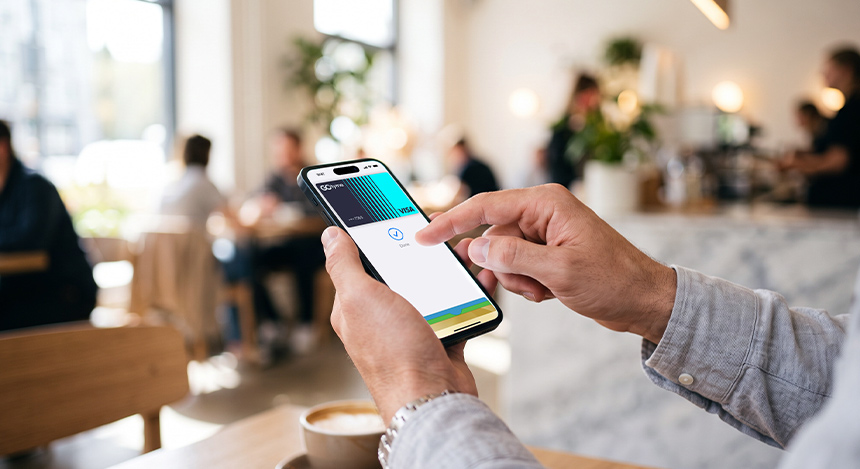
Moving your debit or credit cards into your smartphone starts with checking if your bank is supported. At launch, four major financial institutions support Apple Pay integration, with more institutions scheduled to join in later phases.
Banks | Supported Card Types |
| Chinabank |
|
| GoTyme Bank |
|
| Metrobank |
|
| UnionBank |
|
Apple Pay works seamlessly across compatible devices. It works for in-store tap-to-pay via iPhone and Apple Watch, as well as one-touch online checkout across compatible Apple devices and supported web browsers.
Best of all, your Apple Wallet can act as an all-in-one physical card replacement without sacrificing your credit card perks. For example, if your card offers a 50% dining promo, you still get it automatically with Apple Pay.
Keep in mind that card activation depends on whether your bank supports digital card enrollment for that specific tier. If an eligible card encounters an error during setup, check if your bank’s official app offers a direct “Add to Apple Wallet” shortcut.
How Do I Set Up Apple Pay in the Philippines?
Setting up your cards only takes a few moments, either directly in iOS or through your digital banking app.
Via Apple’s Wallet App
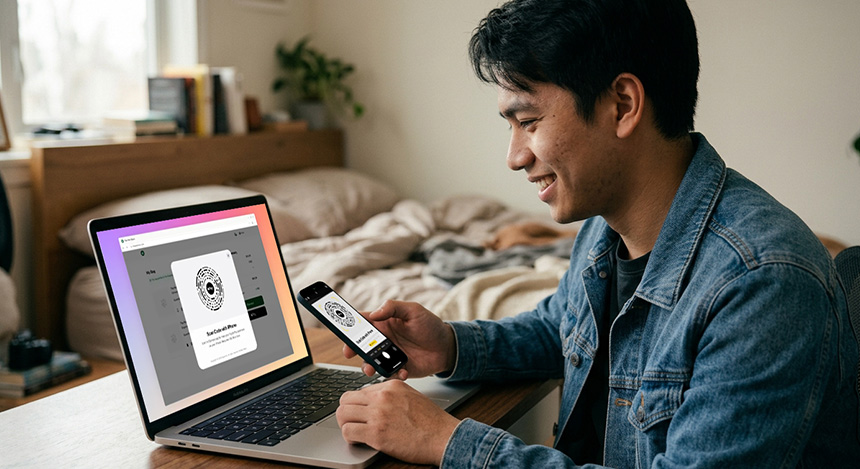
The native Wallet app provides a centralized, guided setup process directly on your device. Here’s how.
- Open the Wallet app.
- Launch the pre-installed Wallet app on your iPhone.
- Tap the “+” button in the upper-right corner.
- Select “Debit or Credit Card”.
- Select your card and capture details.
- View the “Cards Found For You” screen to select existing cards previously linked to your Apple ID across other devices.
- Alternatively, select “Debit or Credit Card” to set up a brand-new card.
- Tap “Continue” to proceed to the contactless setup.
- Hold your card near the top of your iPhone to scan your card details automatically via Near Field Communication (NFC).
- Tap “Enter Card Details Manually” if the camera doesn’t scan your card details.
- Review and accept your bank’s “Terms & Conditions.”
- Verify your identity.
- Enter the One-Time Password (OTP) sent to your registered mobile number.
- Alternatively, approve the prompt via a direct verification redirect in your bank’s mobile app.
- Sync across your devices.
- Choose “Add to Apple Watch” to push the tokenized card directly to your wearable device.
Via Online Banking

If you prefer skipping physical card scans altogether, most mobile banking platforms offer one-tap provisioning. Here’s how to do it.
- Open your bank’s digital banking app.
- Look for the card you want to add.
- Select the card you wish to add to Apple Pay.
- Locate the card on your digital banking app and tap on it to view more.
- Tap “Add to Apple Wallet” to complete instant setup without scanning physical cards
Important Note: Temporarily locked or suspended cards can’t be activated via Apple Pay, so make sure to unlock your card in your banking app before starting setup.
How to Use Apple Pay in the Philippines
Once your cards are set up, checkout becomes intuitive and secure without needing to hand over your physical card to a cashier or type card numbers into web browsers.
In-Store Checkout Terminals
Using Apple Pay as your payment mode at retail stores takes only a few seconds. Follow these instructions.
- Trigger Apple Wallet on your device.
- Double-click the side button (or Home button on older iPhone models).
- Authenticate your payment.
- Authenticate using Face ID, Touch ID, or your device passcode.
- Complete the transaction.
- Hold the top of your iPhone or the screen of your Apple Watch near the contactless Point of Sale (POS) terminal.
- Wait for the transaction to go through. You’ll see a green checkmark on your screen and hear a soft chime from your device, confirming that the transaction is a success.
Pro Tip: Maximize your Apple Pay purchases with Globe Rewards. You can redeem points for shopping vouchers at Lazada and Shopee, grab freebies, or unlock movie deals at Ayala Cinemas for instant savings every time you shop.
In Apps and on the Web
Apple Pay eliminates form-filling and manual card entry with a secure, one-touch checkout. This makes online checkout faster, so you can lock in deals before items sell out.
- Choose Apple Pay at checkout.
- Select the “Apple Pay” button during checkout in Safari or supported mobile apps.
- Verify your transaction details.
- Confirm your shipping address and billing details.
- Confirm and authorize.
- Double-click the side button and authenticate with Face ID or Touch ID.
Where Apple Pay Works Today
From weekend retail runs to late-night online shopping, Apple Pay also fits seamlessly into your daily routine. In stores, it works at any counter accepting tap-to-pay Visa or Mastercard. For online transactions, look for the Apple Pay option at checkout across participating local apps and websites.
Check out this quick breakdown of how Apple Pay integrates across channels.
Channel | Major Merchants Accepting Apple Pay in the Philippines |
| In-Store / Retail |
|
| Apps and Online |
|
Pro Tip: Manage your mobile payments effortlessly by using Apple Pay to settle your Globe Postpaid, Platinum, and other Globe plan bills. You can also use it to buy prepaid load directly using the GlobeOne app or make quick, touch-free payments at Globe stores nationwide.
Using Apple Pay in the Philippines: FAQs and Tips
Adjusting to a new payment method comes with a few local considerations. Here’s what you need to know before using Apple Pay as a payment mode.
What should I do if a cashier doesn’t recognize Apple Pay?
Since any terminal that accepts contactless card taps will work with Apple Pay, simply tell the cashier “Visa tap” or “Mastercard tap” to avoid confusion.
Will the Philippine cards that I enrolled in Apple Pay work when I travel abroad?
Yes. Any supported Philippine credit or debit card enrolled in Apple Pay works worldwide wherever contactless payments are accepted. Just confirm with your bank that international transactions are enabled.
For an even more worry-free trip, turn on postpaid roaming or pre-purchase a prepaid roaming promo, so you can receive real-time transaction alerts and bank one-time passwords (OTPs) everywhere you tap to pay.
Can I use Apple Pay on the MRT and LRT?
Yes. You can tap your iPhone or Apple Watch at designated contactless turnstiles along MRT-3 and LRT-2. Look for the upgraded payment gates at station entrances and tap your device using any supported Visa or Mastercard credit or debit card in your Apple Wallet to enter and exit.
Modernizing Everyday Shopping with Contactless Payments
Upgrading your payment routine works best with a strong mobile network. Staying connected keeps tokenization smooth, OTP verification instant, and digital receipts quick wherever you shop.
You can lock in this seamless connection with the All-New GPlan Plus, which bundles unlimited postpaid data access and exclusive perks into one convenient monthly bill. Alternatively, if you prefer pay-as-you-need flexibility without losing speed, a prepaid data promo delivers that same network reliability.
Instant card tokenization and real-time alerts keep every checkout secure in the background. With a strong connection behind them, every tap stays convenient, allowing you to move through your day without breaking stride.