Life moves fast, and paying bills should also be as quick and easy. Whether you’re juggling work-from-home days, family schedules, or simply enjoying a quiet weekend in, settling your Globe bills has never been more effortless.
With just a few clicks, you can stay on top of your connectivity and keep that seamless digital lifestyle flowing without stepping out the door.
Here’s everything you need to know about Globe bill payment online using apps and websites.
GlobeOne
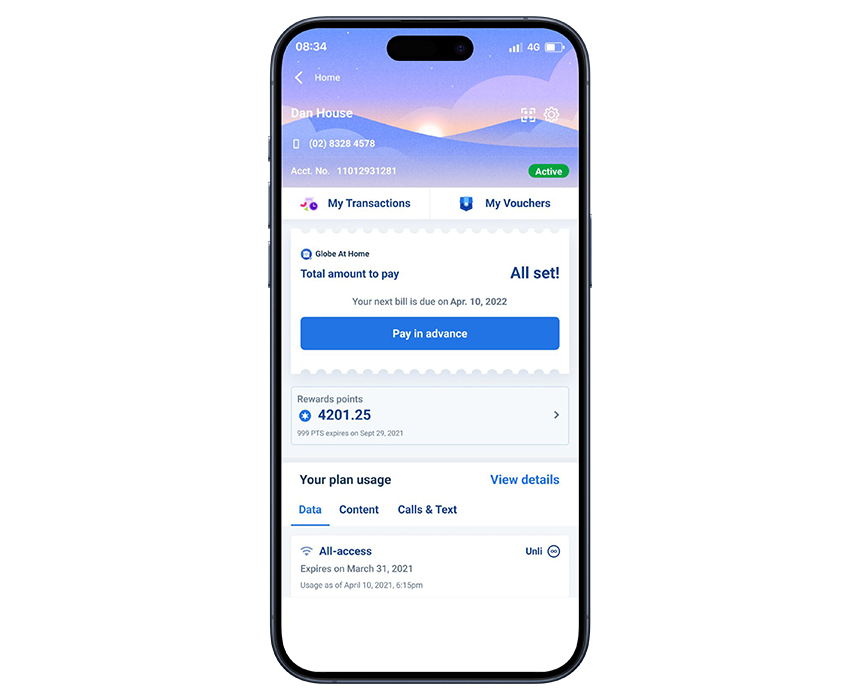
The GlobeOne app helps you manage your postpaid account and pay your monthly bills. Its Bills and Payments feature allows you to handle both mobile (GPlan and Platinum) and broadband (GFiber) services all in one place.
Download the GlobeOne app via Google Play or App Store then create an account using your email or social media account. The following steps describe how to secure your GlobeOne account and complete a Globe bill payment under your account.
- Nominate a six-digit pin or enable biometrics access.
- Add your Globe mobile number into your GlobeOne account.
- Verify your account with a one-time PIN.
- Tap “View Details” on your account reflected on GlobeOne’s Home view.
- Tap “Pay Now” on your account’s page.
- Enter the exact amount due.
- Tap “Yes! I agree to pay 0.920% of the bill payment amount, and get GInsure Bill Protect!” to protect your bills payment for up to 36 months.
- Tap “Select payment method” and choose your preferred payment option.
- You may select GCash, credit/debit card, e-wallet (Grab, Maya, or ShopeePay), or bank transfer (BPI, RCBC, UnionBank).
- You may also choose the Pay Later option with GCredit or GGives.
- Tap “Pay Bill” and complete the transaction.
Make your GlobeOne app serve as a command center for your digital life. You can easily pair automated payments for your Postpaid or Platinum plan with exclusive rewards and high data allocations that keep all your devices connected.
GCash
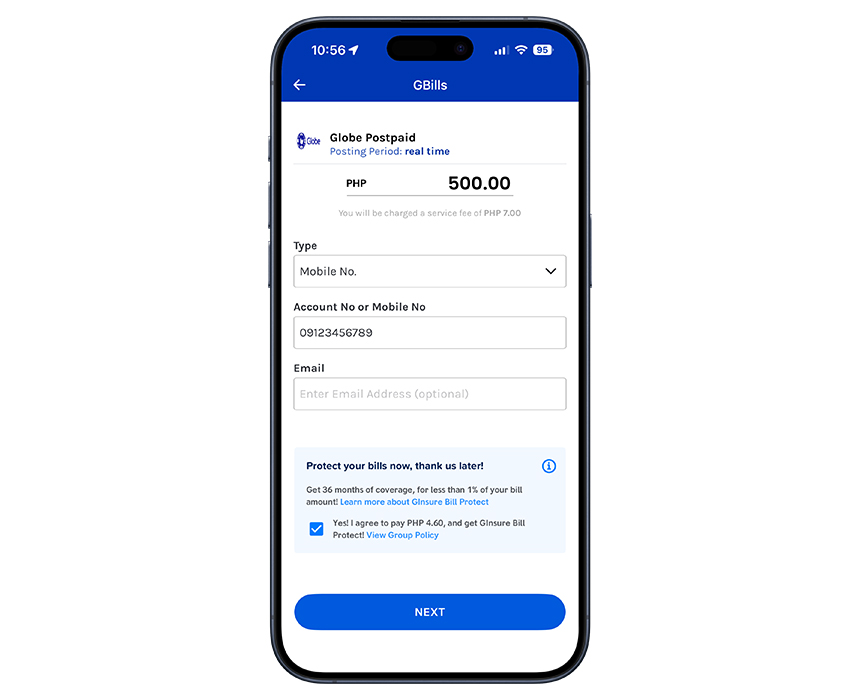
A favorite among online merchants, GCash’s online payment facilities can help you with more than just your online shopping. You can use the app to settle your bills, too, among other features. Even more impressive, you can use your GCredit instead of cash.
GCash is available for download via the App Store for iPhone users or Google Play for Android. Simply register your Globe prepaid or postpaid number and email address with GCash to immediately enjoy its bills payment features.
For Globe Postpaid (real-time posting):
- Launch the GCash app on your phone.
- Tap on the “Bills” icon to go to “GBills.”
- Tap on the “Telecoms” icon.
- Type “Globe Postpaid” on the Search Bar or scroll down until you see “Globe Postpaid.”
- Tap “Globe Postpaid.”
- Enter the exact amount due. Note that you’ll be charged a service fee of ₱7.00 per transaction.
- Tap the dropdown under “Type,” then select either “Account No.” or “Mobile No.”
- Key in the Account Number (8 or 10 digits) or Mobile Number (11 digits) of your Globe Postpaid plan.
- Enter your email address should you wish to receive another receipt of your transaction straight to your email.
- Tap “Yes! I agree to pay 0.920% of the bill payment amount, and get GInsure Bill Protect!” to protect your bills payment for up to 36 months.
- Tap “Next.”
- Choose a payment option under “My Payment Source.”
- Select “GCash” to tap into your balance for instant ease, or go flexible with “GCredit” or “GGives.”
- Confirm that your chosen option shows a blue checkmark, then tap “Confirm.”
For Globe at Home/Innove (real-time posting):
- Launch the GCash app on your phone.
- Tap on the “Bills” icon to go to “GBills.”
- Tap on the “Telecoms” icon.
- Type “Globe at Home/Innove” on the Search Bar or scroll down until you see “Globe at Home/Innove.”
- Tap “Globe at Home/Innove.”
- Enter the exact amount due. Note that you’ll be charged a service fee of ₱7.00 per transaction.
- Tap the dropdown under “Type,” then select either “Account No.” or “Landline No.”
- Key in the Account Number (9 digits) or Landline Number (8 to 12 digits) of your Globe Postpaid plan.
- Enter your email address should you wish to receive another receipt of your transaction straight to your email.
- Tap “Yes! I agree to pay 0.920% of the bill payment amount, and get GInsure Bill Protect!” to protect your bills payment for up to 36 months.
- Tap “Next.”
- Choose a payment option under “My Payment Source.”
- Select “GCash” to tap into your balance for instant ease, or go flexible with “GCredit” or “GGives.”
- Confirm that your chosen option shows a blue checkmark, then tap “Confirm.”
Paying your Globe bills through GCash gives you a faster and more flexible way to manage your accounts, with multiple payment options available at your fingertips.
Paybill Corporate Payment
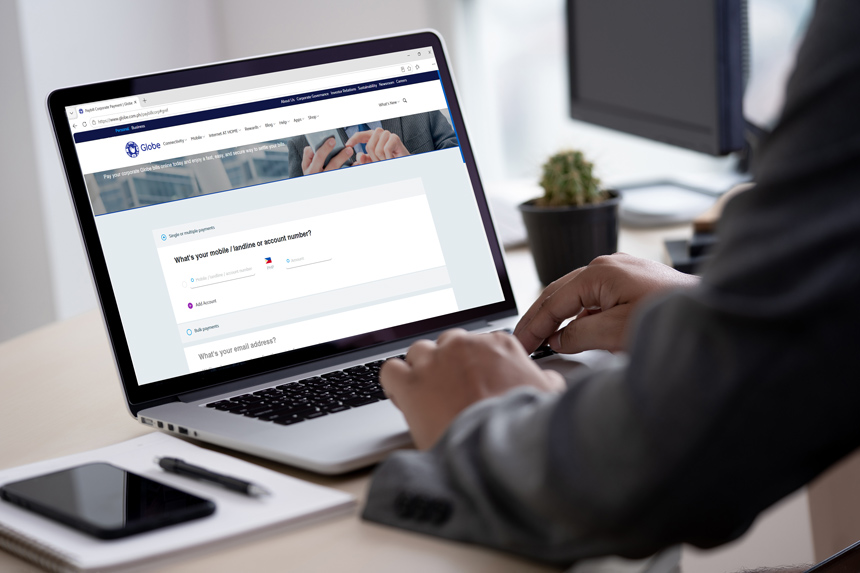
For SMEs and corporations, Globe’s Paybill Corporate Payment platform offers a centralized and convenient way to handle multiple Globe bills. It makes it easier to stay on top of your corporate accounts, whether you’re paying one account or managing dozens.
For Single or Multiple Payments:
- Go to Globe’s Paybill Corporate Payment page.
- Scroll to and click the “Single or multiple payments” section.
- Enter the Mobile Number, Landline Number or Account Number in the field labeled “What's your mobile/landline or account number?”
- Input the Amount in PHP (minimum ₱100.00 per bill).
- Click “Add Account” to include additional bills if settling multiple in one session.
- Provide your email address to receive a confirmation receipt directly to your inbox.
- Tick the box to agree to Globe Telecom's Terms & Conditions and Privacy Policy.
- Hit “CONTINUE” to review details, select your payment method, and complete the transaction.
For Bulk Payments:
- Go to Globe’s Paybill Corporate Payment page.
- Scroll to and click the “I want to pay in bulk” section.
- Click “Download .CSV file template” to grab the ready-to-use file.
- Open the downloaded template in your spreadsheet tool (Excel, Google Sheets, etc.).
- Leave the first row blank—it’s reserved for the header.
- Fill the three columns accurately.
- Column 1: Enter Mobile/Landline/Account Number (numeric characters only).
- Column 2: Type “PHP” as the currency.
- Column 3: Input the Amount (no commas; use period for decimals).
- Save the file using this format: Payment_{number of rows}_Company Name.csv
- Return to the portal and click “UPLOAD .CSV FILE.”
- Browse and select your saved .CSV file to upload
- Review the displayed filename and size after a successful upload.
- Correct any flagged errors in your file, then re-upload if needed.
- Fill in the remaining required fields on the payment page (email for receipt, agree to Terms & Conditions and Privacy Policy).
- Click “CONTINUE”, choose your payment source, and finalize the bulk payment.
Integrating your Globe Business accounts into the Paybill platform ensures that your team stays productive. Whether you’re managing mobile bundles or GFiber corporate plans, using these digital channels allows you to keep accounts active and organized, giving you more time to focus on growing your business.
Taking Control of Your Payments Online
Paying your bills online is smoothest with a connection you can count on. If you're settling accounts, reviewing statements, or managing multiple accounts regularly, GFiber Postpaid is built for that kind of regular use. But if you only hop online to pay a bill here and there, GFiber Prepaid lets you top up just for those moments, so you're covered when a due date rolls around without paying for a full month you won't use.
On the go, a mobile postpaid plan gives you steady data and add-ons without having to think about it. If your needs change month to month, prepaid plans let you load only what you need, when you need it.




With Globe’s online payment options, you choose when to pay, how to pay, and you're never stuck waiting in line or watching the clock.


