In this article:
Filipinos now have a faster way to prove their identity, thanks to ongoing digital upgrades to the country’s identity verification system.
Beyond the physical card, the National Identification (ID) is now available in digital format through the Philippine Identification System (PhilSys). This gives you a more convenient and secure way to confirm your identity, without needing to present multiple secondary documents for government and private transactions.
If you’re ready to get yours, here are the latest updates on Digital National ID registration and what to expect every step of the way.
Why Get a Digital National ID
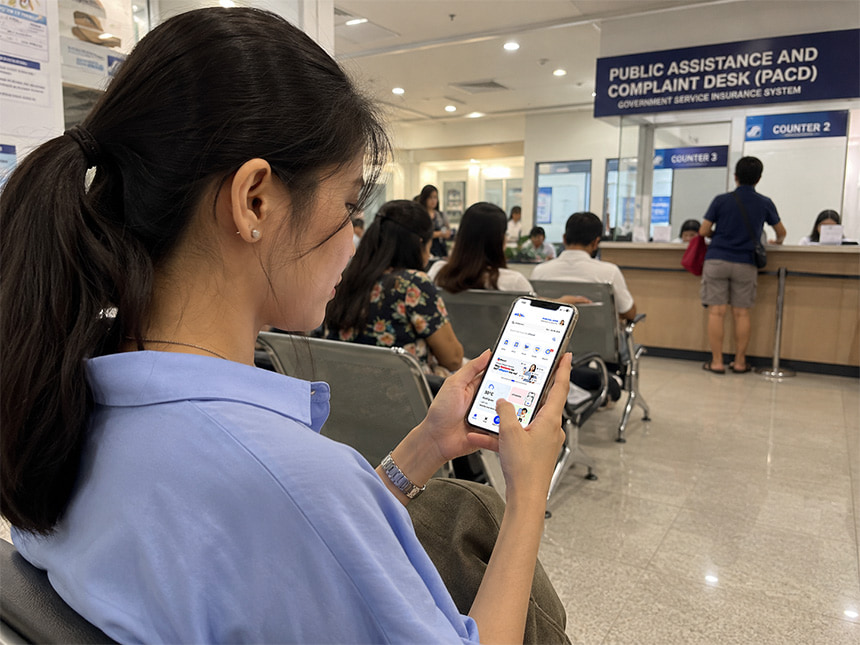
Having a Digital National ID gives you valid identification that’s readily accessible. It serves as an official electronic credential with no expiration and can be stored on your phone, allowing for easier presentation when needed. Its features and capabilities make identity verification more seamless across different situations and services.
Equal Legal Validity
Just as its physical counterpart, the Digital National ID can be used for many government and private purposes. This includes handling civil registration records, seeking social welfare aid, verifying mobile wallets like GCash, completing purchases, and claiming remittances.
Agencies and establishments can even confirm its validity through the National ID eVerify via the quick verification (QR) code.
Wider Acceptance
Under Bangko Sentral ng Pilipinas (BSP) Memorandum No. 2024-026, BSP-supervised financial institutions are required to accept all National ID formats, including the Digital National ID, as an official government-issued identification document of a person. Philippine Statistics Authority (PSA) Undersecretary Claire Dennis S. Mapa also encouraged registered Filipinos to make the most of the digital version to fully enjoy the benefits of being part of the PhilSys ID system.
Instant Accessibility
Your Digital National ID is always with you. You can view it on your eGovPH app, save a screenshot, and display it anytime on your phone, without needing to bring your physical ID.
Enhanced Security
The Digital National ID features advanced security measures, such as facial recognition, QR codes, and fingerprint scans, to help prevent identity theft. It also works as a secure backup in case your physical card is lost or unavailable.
What You Need Before Registering for a Digital National ID
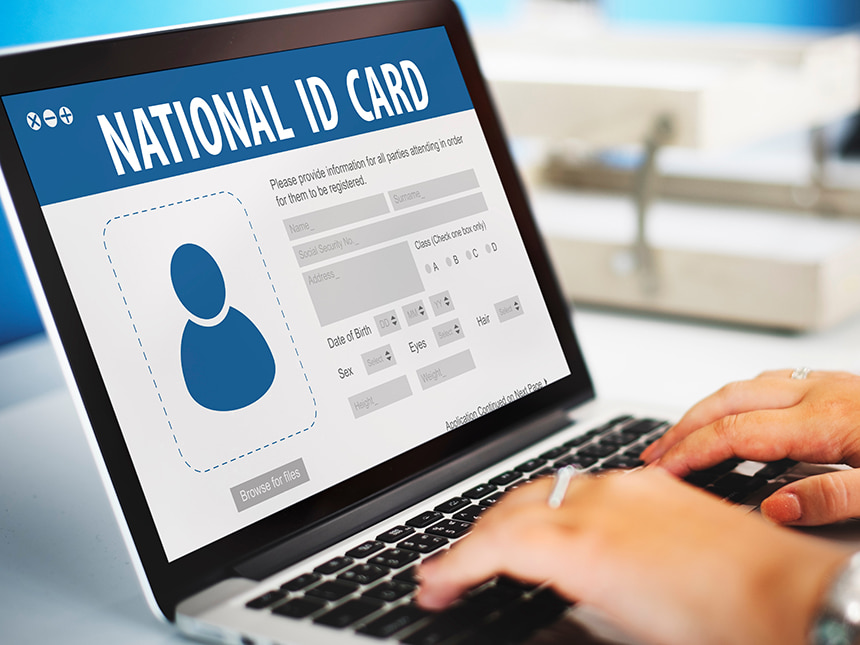
Understanding how to get your National ID starts with having the correct requirements.
Completed PhilSys Registration
Prepare an accepted primary ID, such as a Philippine passport, MySSS Card, driver’s license, or PSA-issued birth certificate.
You may also submit secondary IDs like an employee ID, school ID, or barangay certificate, as long as they show your full name, facial photo, signature or thumbmark, address, and birth date. See the complete list of accepted IDs on the PSA portal.
Head to a PhilSys Registration Center, where your documents will be checked and your biometric information collected.
Transaction Reference Number (TRN)
Keep your TRN slip safe after registration. It’s needed to check the availability of your ePhilID in paper format and the delivery progress of your National ID card.
PhilSys Record Availability
Your digital National ID becomes available once your PhilSys registration has been approved and your record is ready.
eGovPH Account Creation
Note that the National ID website now prompts you to download and sign in to the eGovPH app before you can access the digital version of your National ID. So, make sure that the app is installed on your smartphone. You can get it from Google Play or the Apple App Store. Then follow these detailed account setup instructions.
Key Steps to Get Your Digital National ID

Once you're done with your PhilSys registration and have access to an existing eGovPH account, you can now obtain your ePhilID.
- Open the eGovPH app on your mobile. Log in using your registered phone number or email and your 6-digit Mobile Personal Identification Number (MPIN). You may also be asked to verify your identity by taking a facial verification before you can continue.
- Look for the Digital National ID section in the app. After clicking the blue icon on the main screen, your Digital National ID will load, displaying your photo, legal name, PhilSys Number (PSN), and a scannable QR code.
- Save copies of the front and back of your Digital National ID. Enlarge each view and take a screenshot. For convenience, you can combine both screenshots into a single PDF file on your phone.
FAQs About the National ID
Here are some quick answers to the most frequently asked questions and other important details about the National ID.
Is PhilSys and National ID the same?
No. PhilSys, or the Philippine Identification System, is the government's national identification system. The National ID is the proof of identity issued to a person after successful registration in PhilSys.
Where can I walk in for a National ID?
You can register for free at any PSA Regional or Provincial Office, selected LGUs, or participating malls. Simply bring and present the original copy of your valid supporting files, including your birth certificate, passport, driver’s license, or other accepted government-issued ID, for identity verification. To find the nearest registration site, browse the PhilSys Registration Center directory.
How can I check my National ID online?
You need to sign in to your eGovPH account to view your Digital National ID. If you don’t have an account yet, download the eGovPH app on your mobile device, then create an account.
Can I still use my physical National ID?
Yes, you can! The Digital National ID isn’t a replacement but an added option to conveniently prove your identity. The physical plastic card, paper format, or digital version are equally accepted by government offices and private businesses.
How do I get my plastic National ID card?
Once you’ve registered for the National ID, there’s no need to apply for the physical card separately. PSA automatically issues your card, and the Philippine Postal Office (PHLPost) delivers it to your registered address for free.
There’s no standard pickup option, but if delivery is unsuccessful and your card is held at your local PHLPost branch, you may get it there. Bring your original PhilSys transaction slip and a valid government-issued ID when claiming your card.
Can I request to print my National ID?
No. You can’t print your own National ID, especially on plastic (PVC) cards. Doing so is against the law. If you need a paper copy, visit a PhilSys registration center to get a free official printed ePhilID.
Going Digital with Confidence
Getting your Digital National ID gives you one credential that works everywhere. Once you’ve completed PhilSys registration and set up eGovPH, your ID is ready whenever you need, whether in person or online.
A reliable connection helps you complete your registration smoothly, from logging in to eGovPH to finishing facial verification. GFiber Postpaid is a practical option for households that need consistent internet for regular online government transactions and everyday use. If you only need connectivity when it suits your budget or schedule, GFiber Prepaid offers no lock-in and lets you top up as needed.




Beyond the home, you’ll likely need to verify your Digital National ID out and about, too, at a bank, a government office, or a store counter. A mobile postpaid plan keeps you connected with steady data for regular use, while mobile prepaid works well if you prefer loading data only when a transaction comes up.
No matter how you choose to stay connected, the GlobeOne app lets you conveniently buy internet promos, check your data balance, and reload to keep your connection seamless before, during, and after your digital national ID registration.


